Unlock Peak Performance: Wi-Fi 7 Router Optimization for 2026

In the rapidly evolving landscape of digital connectivity, the arrival of Wi-Fi 7 (802.11be, also known as Extremely High Throughput or EHT) marks a significant leap forward. As we approach 2026, the promise of unprecedented speeds, lower latency, and enhanced capacity is no longer a distant dream but a tangible reality for those who have embraced this cutting-edge technology. However, simply owning a Wi-Fi 7 router isn’t enough to unlock its full potential. To truly maximize your Wi-Fi 7 router and achieve the projected 20% faster speeds, a nuanced understanding of its capabilities and strategic optimization are paramount. This comprehensive guide will delve into the insider tips and advanced strategies necessary to elevate your home network experience to an entirely new level.
Understanding the Core of Wi-Fi 7 Optimization
Before we dive into specific optimization techniques, it’s crucial to grasp what makes Wi-Fi 7 so revolutionary and how these advancements contribute to superior performance. Wi-Fi 7 builds upon its predecessors, Wi-Fi 6 and Wi-Fi 6E, introducing several groundbreaking features:
- 320 MHz Channels: A significant increase in channel width, allowing for much greater data throughput. This is like widening a highway from two lanes to eight, enabling more traffic to flow simultaneously.
- 4096-QAM (Quadrature Amplitude Modulation): This higher-order modulation scheme packs more data into each signal, effectively increasing data density and overall speed. Imagine sending more information with each blink of a light.
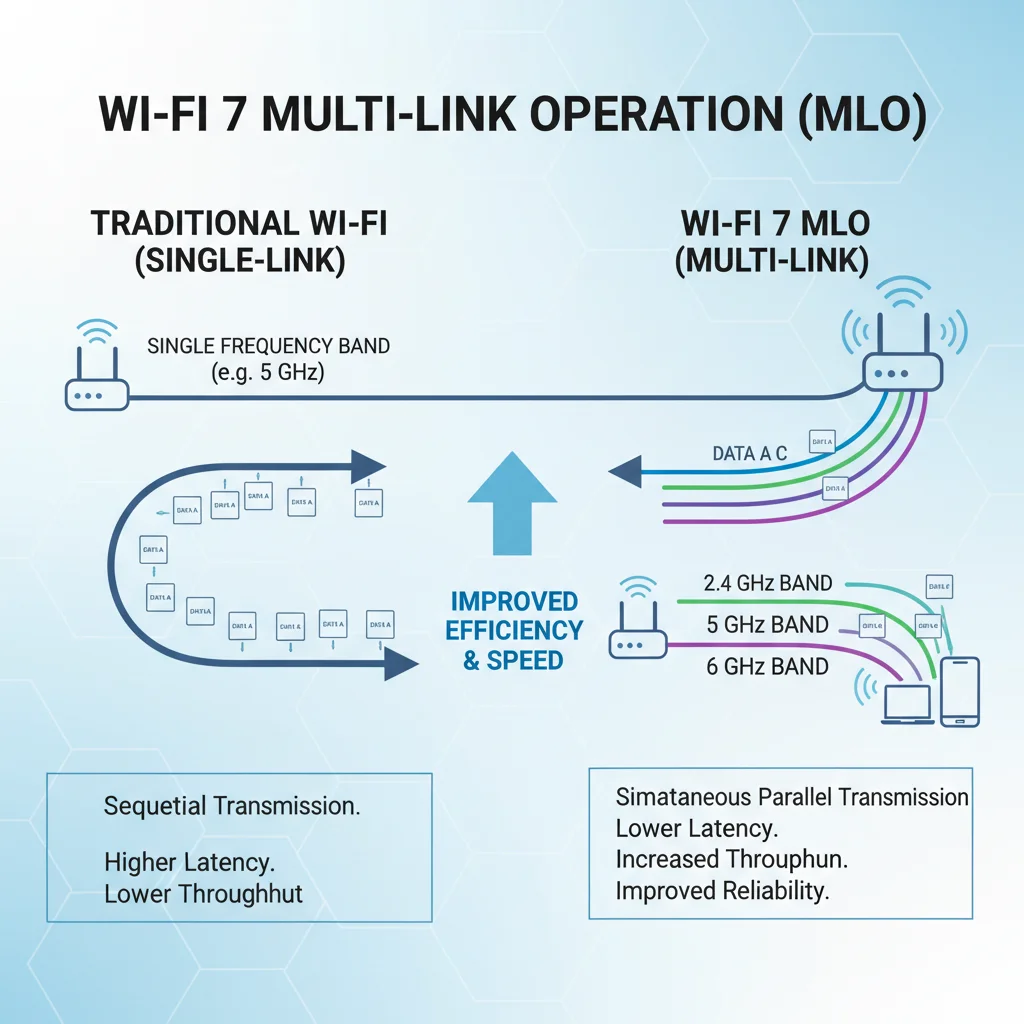
- Multi-Link Operation (MLO): Perhaps the most transformative feature, MLO allows devices to simultaneously send and receive data across different frequency bands (2.4 GHz, 5 GHz, and 6 GHz). This provides dynamic load balancing, improved reliability, and significantly higher aggregate speeds.
- Preamble Puncturing: An intelligent mechanism that allows a Wi-Fi 7 router to ‘puncture’ or ignore narrow interference within a wide channel, enabling the use of larger channels more efficiently even in congested environments.
The goal of Wi-Fi 7 Optimization is to leverage these features to their fullest. This means not just enabling them, but configuring your network and devices to take maximum advantage of the expanded bandwidth, advanced modulation, and intelligent multi-band operation. Achieving 20% faster speeds by 2026 isn’t just about raw hardware power; it’s about smart configuration and a deep understanding of your network’s ecosystem.
Advertisements
Strategic Placement: The Foundation of Wi-Fi 7 Performance
Even the most advanced Wi-Fi 7 router can be hobbled by poor placement. Radio waves are susceptible to interference and attenuation. For optimal Wi-Fi 7 Optimization, consider the following:
- Central Location: Place your router in a central location within your home, ideally near the areas where you use the internet most. Avoid corners or placing it in a closet.
- Elevated Position: Wi-Fi signals tend to spread downwards. Placing your router on a higher shelf or a second-story landing can improve coverage, especially for multi-story homes.
- Avoid Obstructions: Walls (especially thick concrete or brick), large metal objects, and appliances (microwaves, cordless phones) can significantly degrade Wi-Fi signals. Keep your router away from these impediments.
- Minimize Interference: Identify potential sources of electromagnetic interference (EMI) such as baby monitors, old cordless phones, and even some smart home devices. While Wi-Fi 7 is more resilient, minimizing interference is always beneficial for Wi-Fi 7 Optimization.
Think of your Wi-Fi signal as a light source. If you want to illuminate an entire room, you wouldn’t put the light in a box in the corner. The same principle applies to your Wi-Fi 7 router. Proper placement alone can often yield noticeable improvements in speed and stability, laying a strong groundwork for further Wi-Fi 7 Optimization efforts.
Unleashing 320 MHz Channels and 4096-QAM
These two features are the bedrock of Wi-Fi 7’s raw speed potential. To ensure you’re getting the most out of them:
1. Enable 320 MHz Channels (Where Available)
Access your router’s administrative interface (usually via a web browser using its IP address, e.g., 192.168.1.1). Navigate to the wireless settings for the 6 GHz band. Look for an option to set the channel width to ‘Auto’ or explicitly ‘320 MHz’.
- Caveat: 320 MHz channels are primarily available on the 6 GHz band. This band is less congested but has a shorter range and poorer wall penetration than 5 GHz or 2.4 GHz. Your client devices must also support 6 GHz and 320 MHz channels.
- DFS Channels: Some 5 GHz channels can offer wider bandwidth (e.g., 160 MHz), but they often rely on Dynamic Frequency Selection (DFS) to avoid radar interference. While Wi-Fi 7 improves DFS handling, be aware that DFS channels can occasionally cause temporary signal drops if radar is detected. For ultimate stability, prioritize 6 GHz for 320 MHz channels.
2. Verify 4096-QAM Support
4096-QAM is typically an automatic feature of Wi-Fi 7 and should be enabled by default on both your router and compatible client devices. You usually won’t find a direct toggle for this in your router’s settings. However, you can often check the connection details of your Wi-Fi 7 client devices (e.g., in Windows, network adapter properties; on Android, Wi-Fi details) to see the reported modulation scheme. If your devices are connecting at Wi-Fi 7 speeds, they are likely utilizing 4096-QAM.
For optimal Wi-Fi 7 Optimization, ensure your client devices (laptops, smartphones, smart TVs, gaming consoles) are also Wi-Fi 7 compatible. Even one older device on your network can pull down the overall efficiency if not properly managed.
Mastering Multi-Link Operation (MLO) for Seamless Performance
MLO is a game-changer for Wi-Fi 7 Optimization. It allows your Wi-Fi 7 router and compatible devices to use multiple frequency bands simultaneously for a single connection. This can be configured in two primary ways:
- Enhanced Reliability: If one band experiences interference, the connection can seamlessly switch or leverage another band, reducing latency and packet loss.
- Increased Throughput: Data can be aggregated across bands, effectively combining the bandwidth of, say, a 5 GHz and a 6 GHz link to achieve significantly higher speeds.
To optimize MLO:
- Enable MLO on Router: Most Wi-Fi 7 routers will have MLO enabled by default. Double-check your router’s advanced wireless settings to ensure it’s active.
- Client Device Support: Ensure your client devices explicitly support MLO. This is critical. Without MLO-compatible clients, this feature remains dormant. As 2026 approaches, more devices will natively support MLO, making Wi-Fi 7 Optimization even more impactful.
- Optimal Band Steering: While MLO handles multi-band usage, good band steering (often called ‘Smart Connect’ or ‘Tri-Band Smart Connect’ by manufacturers) helps guide devices to the best available band. Ensure this feature is enabled and configured to prioritize the 6 GHz band for Wi-Fi 7 capable devices when possible, as it offers the widest channels and least congestion.
Advanced Wi-Fi 7 Optimization Techniques
Beyond the core features, several advanced settings and practices can further refine your Wi-Fi 7 experience.
1. Firmware Updates: The Unsung Hero
Router manufacturers constantly release firmware updates that fix bugs, improve performance, and introduce new features. Regularly check for and install the latest firmware for your Wi-Fi 7 router. This is a simple yet incredibly effective Wi-Fi 7 Optimization step that can resolve many performance issues and enhance security.
2. Quality of Service (QoS) for Prioritization
If multiple users or applications are competing for bandwidth, QoS settings can be a lifesaver. Your Wi-Fi 7 router’s QoS feature allows you to prioritize certain types of traffic (e.g., online gaming, video streaming, video conferencing) over others. This ensures that critical applications receive the bandwidth they need, even during peak network usage. Proper QoS configuration is vital for a smooth Wi-Fi 7 Optimization experience, especially in busy households.
- Application-Based QoS: Some routers allow you to prioritize specific applications.
- Device-Based QoS: You can prioritize certain devices, ensuring your gaming PC or work laptop always gets preferential treatment.
3. Network Segmentation (Guest Networks, IoT Networks)
Creating separate networks for guests or IoT devices can significantly improve your main network’s performance and security. IoT devices, while convenient, can sometimes be chatty and consume bandwidth. Isolating them prevents them from potentially slowing down your primary Wi-Fi 7 connection and adds a layer of security. This is an often-overlooked aspect of comprehensive Wi-Fi 7 Optimization.
4. Channel Optimization and Interference Management
Even with Wi-Fi 7’s advanced capabilities, manual channel selection can sometimes offer an edge, especially in dense urban environments. Use a Wi-Fi analyzer app (available for smartphones or computers) to scan your surroundings and identify the least congested channels on the 2.4 GHz and 5 GHz bands. While 6 GHz is generally less crowded, a scan can still confirm optimal channel usage. Manually setting your router to a less congested channel can reduce interference and improve speeds, contributing to overall Wi-Fi 7 Optimization.
- Preamble Puncturing: Remember Wi-Fi 7’s preamble puncturing? This feature helps mitigate interference within wide channels. Ensure it’s enabled in your router’s settings if you find an explicit toggle.
5. Optimizing Client Devices
Your Wi-Fi 7 router is only as good as the devices connecting to it. Ensure your client devices are also optimized:
- Update Drivers: Keep the wireless network adapter drivers on your laptops and PCs up to date.
- Wi-Fi 7 Compatible Devices: For critical applications, invest in Wi-Fi 7 compatible devices that can leverage 6 GHz, 320 MHz channels, MLO, and 4096-QAM.
- Disable Old Protocols: If possible, configure your devices to prefer newer Wi-Fi protocols (like Wi-Fi 7) over older ones (like Wi-Fi 4 or 5) when multiple networks are available.
The 20% Faster Speeds by 2026: A Realistic Outlook
The promise of 20% faster speeds by 2026 is achievable, but it’s important to set realistic expectations. This improvement isn’t a guarantee simply by plugging in a Wi-Fi 7 router. It’s the cumulative effect of:
- Router Capabilities: A high-quality Wi-Fi 7 router with robust hardware.
- Client Device Adoption: More Wi-Fi 7 compatible devices entering the market and being used in your home.
- Network Configuration: Implementing the Wi-Fi 7 Optimization strategies discussed here.
- ISP Speed: Your internet service provider’s (ISP) connection speed remains a fundamental bottleneck. If your ISP provides 500 Mbps, your Wi-Fi 7 router won’t magically give you 1 Gbps to the internet, though it will ensure that the 500 Mbps is delivered efficiently to your devices.
By 2026, the ecosystem for Wi-Fi 7 will be more mature, with a wider array of compatible devices and potentially even more refined firmware from router manufacturers. Proactive Wi-Fi 7 Optimization now will position you perfectly to take full advantage of these advancements.
Troubleshooting Common Wi-Fi 7 Issues
Even with meticulous Wi-Fi 7 Optimization, you might encounter issues. Here are some common problems and their solutions:
1. Inconsistent Speeds
- Check for Interference: Use a Wi-Fi analyzer to identify competing networks or devices.
- Router Placement: Re-evaluate if your router is optimally placed.
- Firmware: Ensure your router and client device drivers are up to date.
- DFS Events: If on 5 GHz DFS channels, temporary drops might occur due to radar detection. Consider switching channels or prioritizing 6 GHz.
2. Devices Not Connecting to 6 GHz
- Client Compatibility: Verify your device supports 6 GHz Wi-Fi (Wi-Fi 6E or Wi-Fi 7).
- Band Steering: Ensure your router’s band steering is configured to guide devices to 6 GHz.
- Range: 6 GHz has shorter range. Move closer to the router.
3. Lower Than Expected Throughput
- ISP Speed: Confirm your actual ISP speed with a wired connection test.
- Channel Width: Double-check that 320 MHz channels are enabled on the 6 GHz band.
- MLO: Ensure MLO is active on both router and client.
- Network Congestion: Too many devices or high-bandwidth activities can still strain the network.
Future-Proofing Your Network with Wi-Fi 7 Optimization
Investing in a Wi-Fi 7 router and dedicating time to Wi-Fi 7 Optimization isn’t just about current speeds; it’s about future-proofing your home network. As virtual reality, augmented reality, 8K streaming, and cloud gaming become more prevalent, the demand for low-latency, high-bandwidth connectivity will only grow. Wi-Fi 7 is designed to meet these future demands head-on.
By implementing the strategies outlined in this guide – from strategic placement and channel optimization to leveraging MLO and keeping firmware updated – you are not just making your internet faster; you are building a resilient, high-performance network capable of handling the digital demands of today and tomorrow. The journey to 20% faster speeds by 2026 is an ongoing process of informed choices and consistent optimization.
Conclusion: Embrace the Full Potential of Wi-Fi 7
The advent of Wi-Fi 7 represents a monumental leap in wireless technology, offering unprecedented speeds and efficiency. However, merely owning the hardware is the first step. True Wi-Fi 7 Optimization requires a proactive approach, understanding the nuances of 320 MHz channels, 4096-QAM, and especially the transformative power of Multi-Link Operation. By meticulously configuring your router, updating firmware, strategically placing your device, and optimizing your client devices, you can unlock the full potential of your Wi-Fi 7 router. As we move towards 2026, the digital landscape will demand more from our networks than ever before. By following these insider tips, you’ll not only achieve those coveted 20% faster speeds but also ensure your home network is robust, reliable, and ready for whatever the future of connectivity holds. Embrace the power of Wi-Fi 7 Optimization and transform your digital experience today.